Using AI for Scripts
Creating and managing scripts can be time-consuming, especially when you need to handle multiple operating systems and languages. The AI Assistant in KACE Cloud makes this process easier by turning simple, natural language prompts into ready-to-use scripts. You can describe what you need in plain language and let the system do the heavy lifting. It doesn’t just generate code—it also sets key properties like operating system, language, description, and so on for you. You can review every suggestion, changes, compare versions, and apply updates with a single click. With AI, scripting becomes faster, smarter, and less error-prone, so you can focus on getting work done efficiently.
Enable AI Features for Scripts
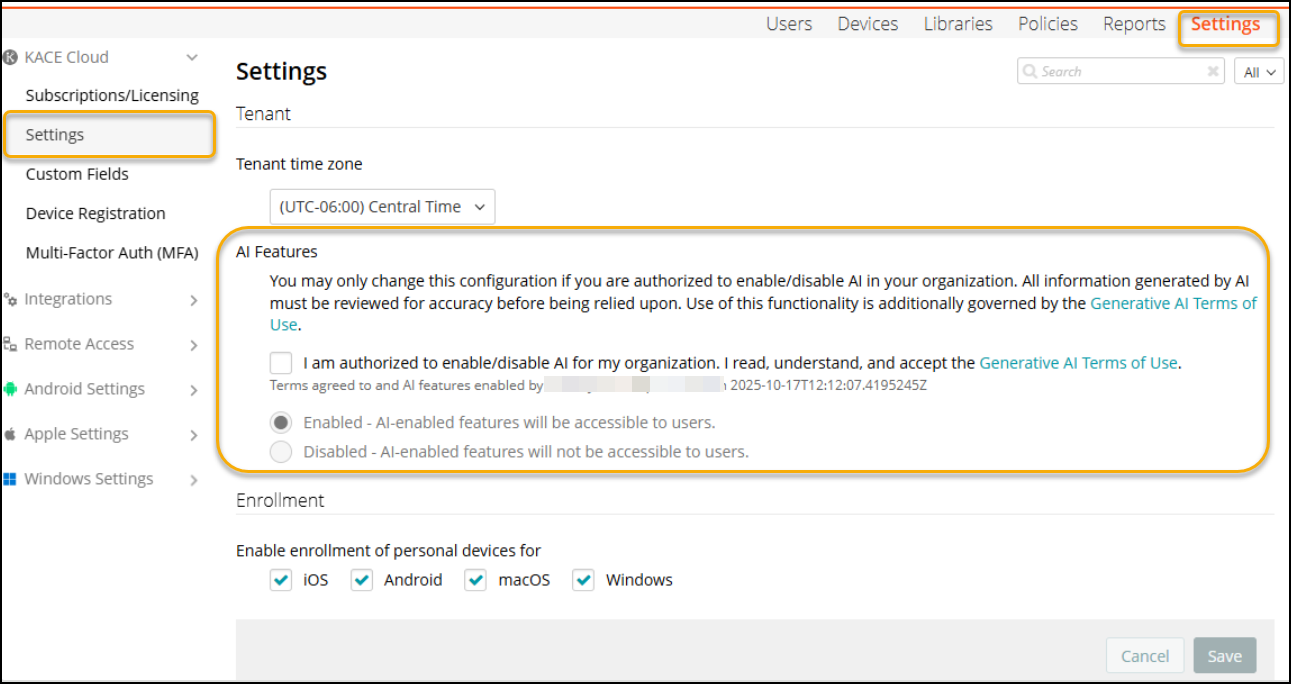
To enable AI feature in the Admin Portal:
- Sign in to the KACE Cloud portal.
- Go to Settings > KACE Cloud > Settings.
- Locate the AI Features option.
- Click the Generative AI Terms of Use link to open and read the terms and conditions.
- Select the 'I am authorized to enable/disable AI for my organization. I read, understand, and accept the Generative AI Terms of Use.' check box to enable the AI features.
- Select Enabled - AI enabled features will be accessible to users.
- Click Save. Once saved,
- The name of the user and the time of accepting the Generative AI Terms of Use appear below the 'I am authorized to enable/disable AI for my organization. I read, understand, and accept the Generative AI Terms of Use.' check box.
- The Assistant tab appears on the script page.